Running SVD
SVD software
A pre-built version of the SVD model software is currently available only for Windows (https://github.com/edfm-tum/SVD). The software bundles a compiled version of ONNX Runtime (onnxruntime.dll).
By default, the bundled version uses the CPU for calculations and does not require a GPU. SVD can also leverage NVIDIA GPUs for faster DNN inference if the GPU-enabled version of ONNX Runtime and the necessary libraries (CUDA, cuDNN) are installed (see Installation guide).
Alternatively, SVD can be compiled from source (see Installation guide).
Operating SVD
Start SVD by running the executable (SVDUI.exe).
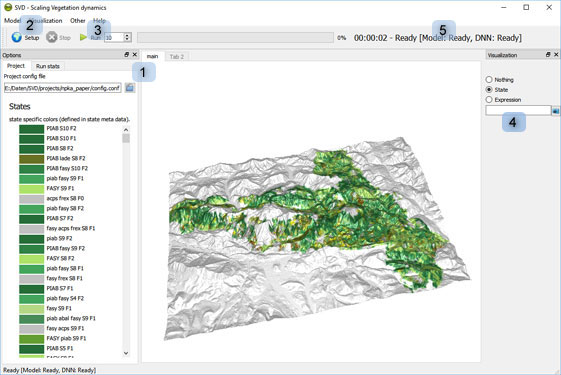
Main controls of SVD (see image above):
- (1): select a configuration file from the project folder (e.g.
config.conf) - (2): Click on
Setup: this loads the project and all required data. Status information is shown in the area (5). In addition, SVD creates a detailed log file during setup and execution (the path to the log file is configured in the configuration file). - (3): Run the model for the given number of time steps (=years).
- (4): Visualization: SVD includes a powerful 3D visualization. Use the right mouse button for rotate and zoom operations. The data category for visualization can be selected in the right hand panel.
- “State”: shows the state associated with each cell (using the color specified in the state table)
- “Expression”: type in any valid expression (e.g.,
soilDepth/100). A list of all available variables is provided in the log file of SVD.
Notes
Check the log file
The SVD log file is the primary tool for diagnosing problems during the model setup and during execution. You can specify different levels of log verbosity in the configuration file
Outputs of SVD
Outputs of SVD are either tabular or spatial data (i.e., tables or grids) - see data formats in SVD. Outputs are configured in the configuration file. The link to attribute data (vegetation attribute database) is currently not directly supported from SVD.